⚡ Masterclass & Guide Créateur
LE GUIDE SECRET :
LE WORKFLOW TWIST PLACE & VIDEO-TO-VIDEO
La méthode exacte des créateurs d'élite pour fusionner une vidéo avec une image de référence de décor — Sans fond vert, sans découpage manuel, et sans déformer votre visage.
📑 Sommaire du Guide
1. La Vérité sur les Vidéos de Téléportation
2. Les 3 Ingrédients Indispensables
3. La Méthode TwistPlace : Solution Économique
4. Autre Méthode — Le Prompt Master #1 : Mode Marcheur
5. Le Prompt Master #2 : Mode Face-Cam
6. Les 5 Secrets pour un Visage Intact
7. L'Astuce Anti-Détection TikTok
8. NOUVEAU — Cas Pratique Viral : Format Car POV
1. La Vérité sur les Vidéos de Téléportation
Sur TikTok et Instagram, tout le monde pense que ces vidéos sont faites avec un fond vert physique ou un simple découpage CapCut collé sur une photo. C'est faux.
Le détourage manuel donne toujours des contours bizarres autour des cheveux et une lumière qui ne correspond pas au décor.
Le véritable secret utilisé par les comptes viraux repose sur une technologie bien plus puissante : le Video-to-Video avec Image de Référence piloté par l'architecture neurale TwistPlace.
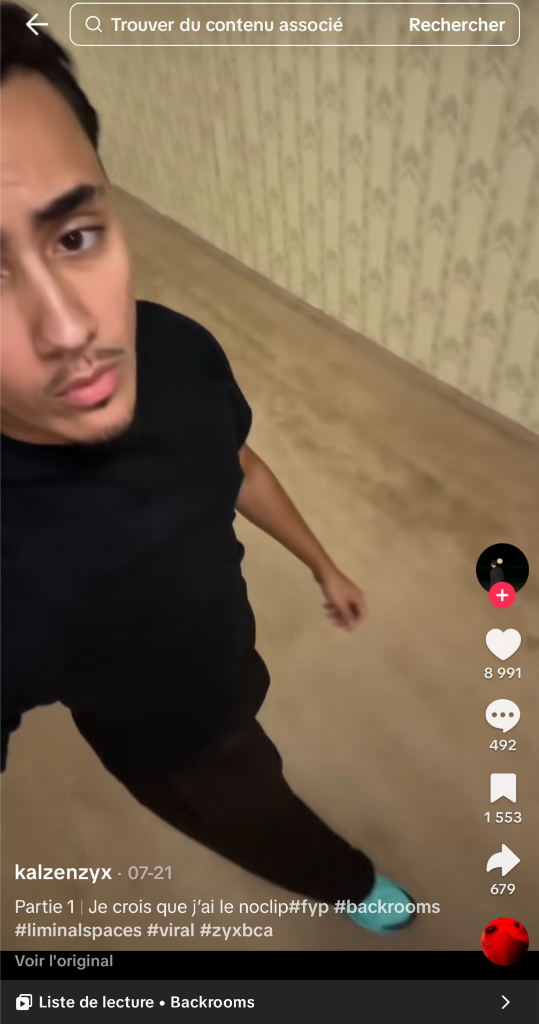
EXEMPLE VIRAL SUR TIKTOK
Exemple Réel de Téléportation Virale (« Noclip dans les Backrooms ») :
Ci-contre, un exemple emblématique de vidéo de marche téléportée ayant percé sur TikTok (créateur @kalzenzyx) : le sujet marche simplement face caméra, et l'IA le téléporte en totale immersion dans l'univers angoissant des Backrooms.
✓ Corps, démarche et visage 100 % intacts
✓ Éclairage et teintes réajustés à l'ambiance du décor
✓ Zéro fond vert, rendu automatique par l'IA
[ 1. VIDÉO SOURCE (Facecam / Marcheur) ]
+ [ 2. IMAGE DE RÉFÉRENCE DU DÉCOR ]
+ [ 3. LE MOTEUR TWIST PLACE (VIDEO-TO-VIDEO) ]
⬇
RÉSULTAT : VIDÉO CINÉMA PHOTORÉALISTE SANS AUCUNE DÉFORMATION
🖥️ Aperçu de l'Interface Studio TwistPlace (
twistplace.com — Téléportation Décor Instantanée)
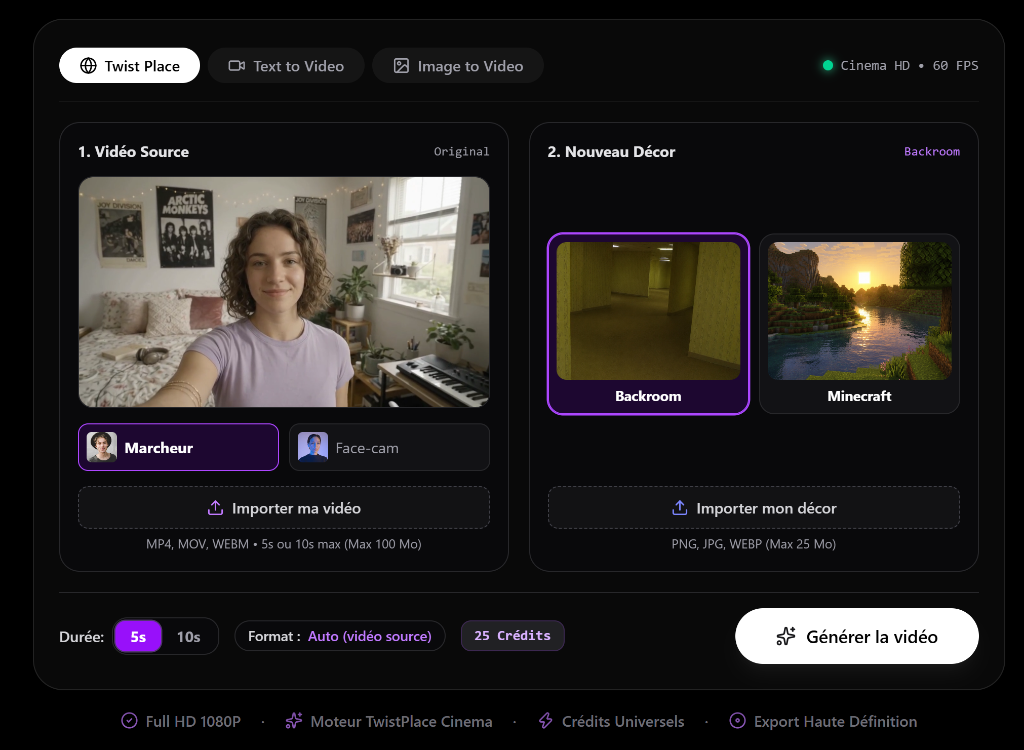
Accédez directement au studio sur twistplace.com — À gauche : votre vidéo originale (mode marcheur ou face-cam). À droite : votre décor cible (ex: Backroom). L'IA remplace 100 % de l'arrière-plan sans fond vert.
2. Les 3 Ingrédients Indispensables
- Ingrédient 1 : Votre Vidéo Source : Filmez-vous à la verticale (9:16), idéalement en 60 FPS. Regardez bien l'objectif et évitez les mouvements de caméra trop violents.
- Ingrédient 2 : L'Image de Référence du Décor : Une image haute définition au format vertical (9:16) montrant clairement l'endroit où vous voulez vous téléporter (Penthouse à Dubaï, rue sous la pluie à Tokyo, studio podcast néon...).
- Ingrédient 3 : Le Prompt Master : La formule chirurgicale qui dicte à l'IA de ne pas toucher à vos yeux, à vos lèvres ni à votre visage, tout en remplaçant 100 % de l'arrière-plan.
3. La Méthode TwistPlace : La Solution la Plus Économique pour Tester
Pour changer de décor et vous téléporter sans dépenser des centaines d'euros dans des configurations techniques complexes, la solution la plus simple, rapide et abordable est de passer directement par twistplace.com.
💡 Pourquoi TwistPlace est l'option la plus économique :
Au lieu de souscrire à des abonnements mensuels onéreux à plus de 100 € sur des plateformes américaines, il vous suffit de vous rendre sur twistplace.com et de prendre un abonnement ou un Pack Découverte à tout petit prix. C'est l'option la plus accessible pour tester la téléportation vidéo immédiatement sans engagement lourd.
🚀 Le Workflow TwistPlace en 5 Étapes Simples :
- Rendez-vous sur twistplace.com et créez votre compte en un clic.
- Choisissez un abonnement ou un Pack Découverte pas cher pour créditer votre espace créateur.
- Dans le menu des outils : sélectionnez impérativement l'outil « Twist Place » (sélecteur Video to Video / Remplacement de décor neural).
- Uploadez votre vidéo de marche dans le champ Vidéo source, et votre image de décor dans le champ Image de référence.
- Cliquez sur « Générer » : et le tour est joué, votre vidéo dans le nouveau décor est générée !
🎥 Comment Bien Réaliser Votre Vidéo de Marche (Les Clés d'un Rendu Réussi) :
- Format vertical 9:16 : Tenez votre smartphone à la verticale, calé à hauteur du torse ou des yeux.
- Filmez impérativement en 60 FPS : Activez le mode 1080p à 60 images par seconde dans les réglages de votre appareil pour éviter tout flou saccadé sur les bras et les jambes lors de la marche.
- Démarche fluide et régulière : Marchez vers la caméra d'un pas naturel et régulier (ou faites filmer par un proche qui recule à la même vitesse).
- Cadrage bien dégagé : Gardez le visage, les épaules et le torse bien visibles. Évitez les vêtements ultra-amples qui flottent de façon imprévisible.
- Lumière uniforme de face : Évitez les contre-jours intenses. Une bonne lumière naturelle de face assure un détourage neural parfait par l'IA.
4. Autre Méthode : Le Prompt Master #1 (Mode Marcheur — En Mouvement)
AUTRE MÉTHODE : Si vous choisissez d'utiliser directement des générateurs d'invites textuelles (Runway / Gemini Pro) plutôt que le workflow 1-clic simplifié de TwistPlace, voici la méthode par prompts complets. À copier-coller lorsque vous marchez vers la caméra :
⚙️ Configuration Indispensable sur l'Outil (TwistPlace / Runway) :
Pour que l'IA réalise l'incrustation sans déformation, vous devez fournir
les 3 éléments suivants :
- Votre Vidéo Source / Vidéo de Référence : Votre vidéo de marche originale (format vertical 9:16, idéalement en 60 FPS).
- Votre Image de Référence : L'image nette et haute définition du décor où vous téléporter.
- Le Prompt Master ci-dessous : La formule exacte d'instruction à coller dans le champ de prompt.
⚠️ Choix Impératif du Modèle IA :
• Modèles à Utiliser : Ajoutez ce prompt sur Runway avec Aleph 2.0 ou sur Gemini Pro.
• ATTENTION : N'utilisez PAS Gemini Flash ! Gemini Flash génère des vidéos de basse qualité pour ce type d'incrustation (visage flou, artefacts et perte des expressions). Privilégiez impérativement Runway Aleph 2.0 ou Gemini Pro.
Utilise la vidéo fournie comme vidéo source principale et l’image fournie comme référence exacte du décor.
Remplace entièrement l’environnement visible autour de la personne par le lieu présent sur l’image de référence, comme si la personne avait réellement été filmée dans cet endroit.
La personne doit rester strictement identique à la vidéo originale : même apparence, vêtements, proportions, visage, posture, démarche, vitesse de marche et mouvements naturels du corps. Ne pas modifier son identité ni sa silhouette.
Conserve également le mouvement original de la caméra, son angle, sa hauteur, sa perspective, ses mouvements et son rythme. La caméra doit donner l’impression qu’une personne filme réellement le sujet en marchant avec lui.
Intègre parfaitement le sujet dans le nouveau décor :
- perspective et échelle parfaitement cohérentes ;
- distance correcte entre la caméra, le sujet et les éléments du décor ;
- éclairage correspondant exactement à celui du lieu de référence ;
- ombres naturelles sur le sol ;
- occlusion réaliste lorsque le sujet passe devant des éléments du décor ;
- reflets et lumière ambiante cohérents ;
- profondeur de champ et flou de mouvement naturels ;
- aucun contour découpé ou effet de fond vert visible.
Le décor doit reprendre fidèlement la composition, l'architecture, les couleurs, les textures et l'ambiance de l'image de référence, tout en étant adapté à la perspective de la vidéo.
Le résultat final doit ressembler à une vraie vidéo tournée sur place, et non à un montage ou à une incrustation IA.
Très important : ne pas figer ou modifier la démarche du sujet. Il doit continuer exactement son mouvement naturel de la vidéo originale tandis que le décor autour de lui est remplacé.
Style : photoréaliste, caméra réelle, lumière naturelle, textures réalistes, cohérence cinématographique, aucune apparence CGI ou génération artificielle.
5. Le Prompt Master #2 : Mode Face-Cam
À copier-coller mot pour mot lorsque vous parlez face à la caméra :
📌 Rappel Configuration : Comme pour le mode Marcheur, uploadez votre vidéo face-cam (vidéo de référence) + votre image de décor (image de référence) + ce prompt. À exécuter exclusivement sur Runway Aleph 2.0 ou Gemini Pro (bannir Gemini Flash qui engendre une basse qualité).
Utilise la vidéo fournie comme vidéo source principale et l’image fournie comme référence exacte du décor.
Remplace entièrement l’environnement visible autour de la personne par le lieu présent sur l’image de référence, comme si la personne avait réellement été filmée en face-cam dans cet endroit.
La personne doit rester strictement identique à la vidéo originale : même apparence, traits du visage, regard face à l'objectif, expressions faciales, parole, mouvements naturels de la tête, vêtements, épaules et posture. Ne pas modifier son identité ni sa silhouette.
Conserve également le cadrage original de la caméra face-cam, son angle, sa hauteur, sa perspective et ses micro-mouvements naturels (caméra tenue à la main en selfie ou face au sujet).
Intègre parfaitement le sujet dans le nouveau décor :
- perspective et échelle de l'arrière-plan parfaitement cohérentes avec le cadrage face-cam ;
- distance correcte et profondeur de champ naturelle (flou d'arrière-plan cinématique réaliste) ;
- éclairage du visage et des épaules correspondant exactement à la lumière et aux reflets du lieu de référence ;
- ombres et reflets ambiants cohérents sur le visage, les cheveux et les yeux ;
- aucun contour découpé, aucun halo ou effet de fond vert visible autour des cheveux et des vêtements.
Le décor doit reprendre fidèlement la composition, l'architecture, les couleurs, les textures et l'ambiance de l'image de référence, tout en étant adapté à la perspective de la vidéo face-cam.
Le résultat final doit ressembler à une vraie vidéo face-cam tournée sur place, et non à un montage ou à une incrustation IA.
Très important : conserver l'authenticité et la synchronisation naturelle des mouvements du visage, des yeux et des lèvres tandis que tout l'arrière-plan autour de la personne est remplacé.
Style : photoréaliste, caméra réelle, lumière naturelle, textures réalistes, cohérence cinématographique, aucune apparence CGI ou génération artificielle.
6. Les 5 Secrets pour un Visage 100 % Intact
- 1. Le Prompt Weight (Poids du prompt) : Gardez-le toujours entre 60 % et 75 %. Si vous le montez à 100 %, l'IA réinvente votre visage au lieu de respecter la vidéo source.
- 2. Haute Définition de l'Image de Référence : L'image de décor doit être nette et en haute résolution (au minimum 1080x1920) pour éviter que l'IA ne génère du bruit autour des cheveux.
- 3. Cadrage Épaules Libres : Ne cadrez pas trop serré sur les yeux. Laissez voir au minimum le haut du torse et les épaules pour que l'IA ancre la perspective de la pièce.
- 4. Évitez les Accessoires Fins : Les écouteurs filaires blancs très fins ou les bijoux minuscules perturbent le tracking du modèle.
- 5. Micro-Mouvements Naturels : Parlez naturellement sans hochements de tête violents pour que la synchronisation labiale (Lip-Sync) reste fluide d'une frame à l'autre.
7. L'Astuce Anti-Détection TikTok (Supprimer le badge IA)
🚫 Le Problème qui Ruine la Rétention et Bride l'Algorithme :
Lorsque vous téléchargez une vidéo directement depuis une IA et que vous la publiez sur TikTok, l'algorithme lit les métadonnées internes du fichier MP4 et appose automatiquement cette étiquette qui gâche l'illusion :
🪄 La Solution Magique : Le Hack CapCut en 10 Secondes
Pour que TikTok ne reconnaisse absolument JAMAIS votre vidéo comme de l'IA, voici la manipulation secrète :
⚡ La Procédure Étape par Étape :
- Installez l'application CapCut (100 % gratuite sur smartphone ou PC).
- Créez un nouveau projet et importez simplement votre vidéo générée par WorldSwap.
- Ne touchez à rien : vous n'avez pas besoin de faire de montage, ni d'ajouter d'effets (vous pouvez juste ajouter vos sous-titres si vous voulez).
- Cliquez directement sur « Exporter » (Télécharger la vidéo) en haut à droite.
💡 Pourquoi cette astuce fonctionne à 100 % ?
En ré-exportant le fichier, CapCut ré-encode entièrement le flux vidéo avec son propre codec et supprime définitivement toutes les métadonnées et signatures d'IA. Lorsque vous publiez ensuite ce nouveau fichier sur TikTok, l'étiquette IA disparaît complètement et la vidéo est traitée comme un tournage réel !
🚀 NOUVEAU CHAPITRE MASTERCLASS
CHAPITRE 8 : CAS PRATIQUE VIRAL (2.7M VUES)
LE FORMAT « CAR POV NOSTALGIA »
Le tutoriel pas-à-pas de A à Z : Comment concevoir l'image de base d'un décor d'enfance, la transformer en vue cinématique depuis une voiture avec rétroviseur, et générer la vidéo virale Image-to-Video.
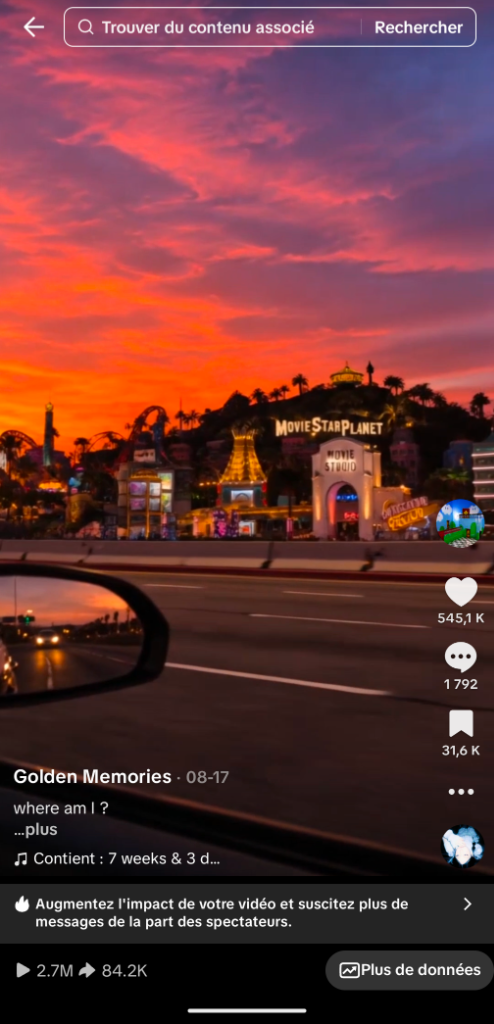
PREUVE VIRALE : 2.7M VUES
🔥 Preuve de Viralité Réelle (2.7M Vues & 545K Likes)
- 2,7 Millions de vues et 545 100 likes organiques enregistrés sur TikTok.
- 84 200 partages : un taux de partage record, le public taguant ses proches en masse (« Tu te rappelles de MovieStarPlanet ? »).
- L'effet psychologique du rétroviseur : Le rétroviseur latéral et les reflets ancrent la scène dans la réalité d'un trajet en voiture.
👉 Voici la méthode exacte étape par étape pour reproduire ce format à l'identique avec l'IA :
📍 Étape 1 : Commencer par Créer l'Image du Décor Pur
Pour obtenir un résultat photoréaliste, ne commencez jamais directement par la vidéo. La première étape indispensable consiste à créer ou importer une première image fixe haute définition du décor nostalgique ou de l'environnement de vos rêves.
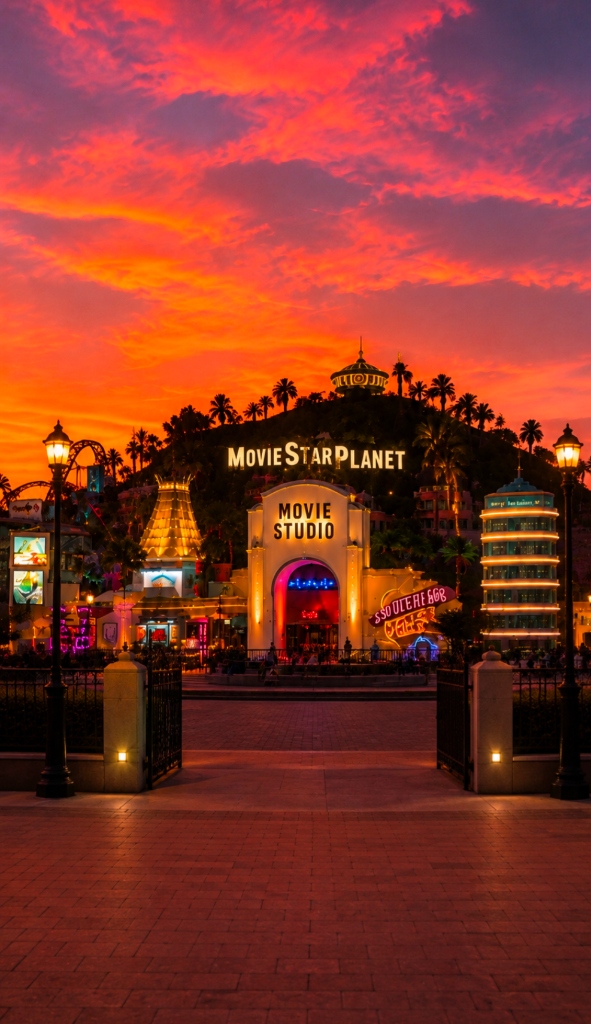
1. IMAGE DE DÉPART (DÉCOR PUR)
Exemple d'image de départ ci-contre :
L'entrée illuminée du parc nostalgique MovieStarPlanet Movie Studio sur une colline au crépuscule, sous un ciel dramatique orange et magenta.
Vous pouvez générer ce type de décor sur TwistPlace.com, Midjourney, ou ChatGPT en décrivant l'univers de votre choix (parc d'enfance, jeux des années 2000, ville rétro, centre commercial liminal).
🚗 Étape 2 : Le Prompt pour Obtenir le Point de Vue Voiture (Rétroviseur Visible)
Fournissez votre première image à l'IA d'image (TwistPlace.com, ChatGPT / DALL-E, ou Midjourney) en choisissant le sélecteur « Image to Image » (ou le sélecteur « Text to Image » si vous partez de zéro) et indiquez-lui de recomposer la scène avec le point de vue de l'intérieur d'une voiture en mouvement, avec le rétroviseur latéral bien visible au premier plan.
Cinematic POV photo taken from inside a moving car driving on an asphalt highway at dusk, vertical 9:16 angle. In the left foreground, the car side-view mirror is clearly visible, reflecting rear traffic headlights. Looking out the passenger side window across the highway barrier towards an expansive nostalgic view of the provided scene [MovieStarPlanet theme park and roller coasters on a hillside with glowing neon signs and ambient mist]. Breathtaking dramatic sky with deep orange, pink, and magenta sunset clouds. Subtle asphalt highway motion blur, soft ambient interior car reflections, shot on 35mm film, hyper-realistic, rich textures, photorealistic 8k.
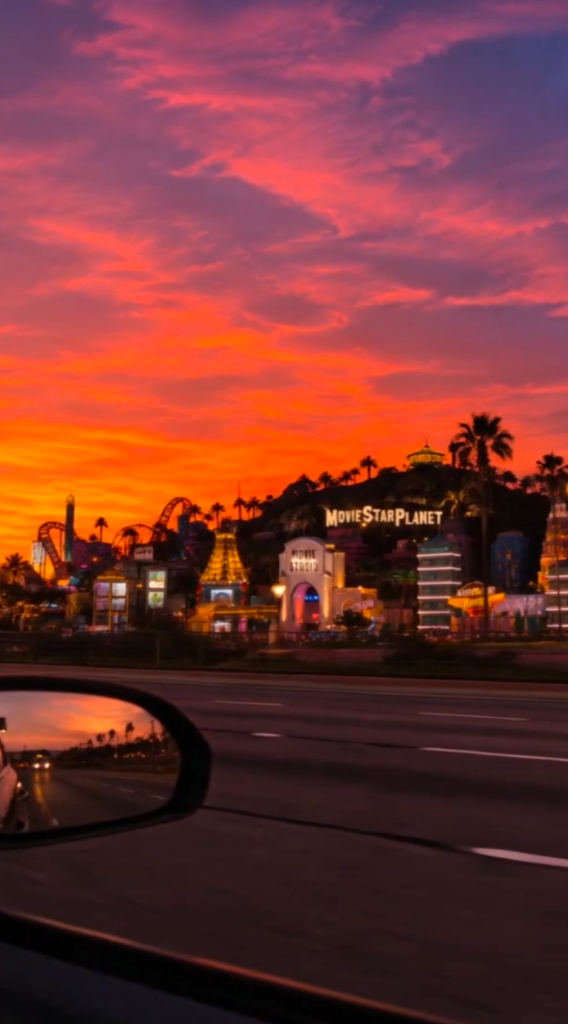
2. RÉSULTAT OBTENU (POINT DE VUE VOITURE)
✨ Résultat généré ci-contre :
L'IA a parfaitement intégré l'habitacle de la voiture, l'asphalte de l'autoroute, et surtout le rétroviseur extérieur avec le reflet lumineux des phares.
C'est cet élément précis qui dupe l'œil humain et crée la conviction absolue qu'il s'agit d'une vidéo réelle filmée au smartphone.
🎬 Étape 3 : Le Prompt Vidéo (Choisir le Sélecteur « Image to Video »)
Une fois que vous avez votre image au point de vue de la voiture (Image 2), vous devez l'animer avec un moteur vidéo haute fidélité.
Pour cette étape, vous pouvez vous rendre sur Runway et utiliser le modèle Aleph 2.0, ou bien utiliser Gemini Pro (également disponible sur twistplace.com).
⚠️ AVERTISSEMENT CRUCIAL SUR LE CHOIX DU MODÈLE :
Attention : Gemini Flash ne génère PAS une vidéo de bonne qualité pour ce type de vidéo !
Le modèle Flash compresse excessivement la dynamique de mouvement, bave sur les néons et déforme le rétroviseur. Pour obtenir un réalisme digne d'un tournage cinéma, utilisez impérativement Gemini Pro ou Runway avec le modèle Aleph 2.0.
⚠️ Dans quel sélecteur aller ? Cliquez impérativement sur le sélecteur « Image to Video » (Vidéo à partir d'une image) et surtout pas Text-to-Video ni Image-to-Text. Déposez votre Image 2 comme référence unique de scène, puis collez scrupuleusement ce prompt :
Create a realistic 10-second cinematic POV video using the provided image as the only scene reference.
Preserve the image exactly as it is—do not add, remove, replace, or alter any objects, buildings, vehicles, people, animals, trees, mountains, roads, signs, or background elements. The composition must remain identical to the original image.
The camera should simulate being filmed from inside a moving car, passing by the scene at a moderate speed. Keep the main subject perfectly centered in the frame for the entire video while the camera moves past it. Maintain a slightly farther viewing distance so the subject is fully visible with some surrounding environment.
The only motion should be realistic camera movement from the moving vehicle, including subtle foreground motion blur, gentle parallax, and natural handheld stabilization. Do not zoom, orbit, tilt, pan, or change the framing. Do not introduce new scenery, extend the environment, hallucinate details, or reveal areas that are not present in the original image.
🔍 Pourquoi ce prompt vidéo est indispensable :
Il bloque toute hallucination de l'IA (aucun objet ajouté ou déformé) et force uniquement un travelling fluide de voiture : flou cinétique naturel sur l'asphalte, micro-stabilisation tenue à la main et effet de parallaxe entre le rétroviseur et l'arrière-plan.
🎵 Étape 4 : Son Viral, Accroche & Export CapCut (Anti-Badge IA)
-
✓
Audio Nostalgique Tendance : Utilisez un audio mélancolique Slowed + Reverb (comme « 7 weeks & 3 days » sur la vidéo de référence TikTok à 2.7M de vues).
-
✓
Hook Mystérieux : Légende courte qui incite aux partages : « where am I ? » ou « Tu te souviens de cet endroit ? ».
-
✓
Le Hack CapCut en 10s (Chapitre 7) : Ré-exportez toujours la vidéo depuis CapCut pour supprimer les métadonnées IA et garantir une diffusion 100 % organique sans étiquette de détection TikTok.
💬
Une Question ou Besoin d'Aide ?
Si vous avez la moindre question, un doute sur vos prompts ou besoin de conseils pour réaliser vos vidéos, n'hésitez pas à me contacter directement :
⚡ Creator Masterclass & Secret Guide
THE SECRET GUIDE:
THE TWIST PLACE & VIDEO-TO-VIDEO WORKFLOW
The exact method elite creators use to merge a walking or face-cam video into any reference background — No green screen, no manual rotoscoping, and zero facial distortion.
📑 Guide Table of Contents
1. The Truth About Teleportation Videos
2. The 3 Essential Ingredients
3. The TwistPlace Method: Most Economical Option
4. Alternative Method — Master Prompt #1: Walker Mode
5. Master Prompt #2: Face-Cam Mode
6. The 5 Secrets for a 100% Intact Face
7. The TikTok Anti-Detection Hack (No AI Badge)
8. NEW — Viral Case Study: Car POV Format
1. The Truth About Teleportation Videos
On TikTok and Instagram, many people assume these viral videos are shot with a physical green screen or cut out manually using basic mobile apps. That is completely wrong.
Manual rotoscoping produces jagged edges around hair, unnatural halos, and lighting that never matches the background environment.
The real secret leveraged by viral accounts relies on far more advanced technology: Video-to-Video with Reference Image driven by TwistPlace's neural architecture.
REAL VIRAL TIKTOK EXAMPLE
Real Viral Teleportation Example ("Noclip into the Backrooms"):
Shown on the left is a classic viral walking teleportation video on TikTok (by creator @kalzenzyx): the creator simply films himself walking normally, and AI completely swaps his surroundings into the eerie, yellow-lit Backrooms.
✓ Body, gait, facial expression, and clothes stay 100% intact
✓ Lighting, floor shadows, and tints automatically match the scene
✓ Zero green screen, 100% automated neural synthesis
[ 1. SOURCE VIDEO (Facecam / Walker) ]
+ [ 2. REFERENCE BACKGROUND IMAGE ]
+ [ 3. TWIST PLACE NEURAL ENGINE (VIDEO-TO-VIDEO) ]
⬇
RESULT: CINEMATIC PHOTOREALISTIC VIDEO WITH ZERO DISTORTION
🖥️ TwistPlace Studio UI Overview (
twistplace.com — Instant Background Teleportation)
Access the studio directly at twistplace.com — Left: your source video (walker or facecam). Right: your target background (e.g. Backroom). AI swaps 100% of the environment seamlessly.
2. The 3 Essential Ingredients
- Ingredient 1: Your Source Video: Film yourself vertically (9:16), ideally in 60 FPS. Keep eye contact with the lens and avoid sudden chaotic camera shakes.
- Ingredient 2: Your Reference Background Image: A high-resolution vertical (9:16) image clearly depicting the location you want to teleport into (Dubai penthouse, rainy Tokyo street, neon podcast studio...).
- Ingredient 3: The Master Prompt: The surgical neural instruction formula telling the AI to preserve your eyes, lips, and facial identity while replacing 100% of the background.
3. The TwistPlace Method: The Most Affordable Solution to Test
To teleport your videos into new backgrounds without spending hundreds of dollars on complicated server setups, the easiest, fastest, and most budget-friendly solution is to use twistplace.com.
💡 Why TwistPlace is the Most Economical Option:
Instead of committing to expensive monthly subscriptions of $95 to $120 on complex platforms, simply visit twistplace.com and select a creator plan or a low-cost Discovery Pack. It is the most accessible way to test video teleportation immediately without heavy commitments.
🚀 The TwistPlace Workflow in 5 Simple Steps:
- Visit twistplace.com and create your account with one click.
- Select a subscription or an affordable Discovery Pack to top up your rendering credits.
- In the tool selector: make sure to choose the « Twist Place » tool (selector Video to Video / neural background swap).
- Upload your walking video into the Source Video field, and your background picture into the Reference Image field.
- Click « Generate »: and that's it, your teleported video is rendered in high definition!
🎥 How to Film a Flawless Walking Video (Golden Rules):
- Vertical 9:16 framing: Hold your phone upright, steadily positioned at chest or eye level.
- Always film in 60 FPS (Crucial): Enable 1080p at 60 frames per second in your camera settings to eliminate stuttering motion blur on hands and legs while walking.
- Steady, natural gait: Walk straight toward the camera at a consistent, moderate pace (or have a friend walk backward in front of you at the same speed).
- Keep the framing clear: Keep face, shoulders, torso, and legs visible. Avoid overly baggy clothes that flutter unpredictably.
- Uniform frontal lighting: Avoid harsh backlight (don't walk with the sun directly behind you). Balanced frontal light ensures flawless AI neural keying.
4. Alternative Method: Master Prompt #1 (Walker Mode — In Motion)
ALTERNATIVE METHOD: If you choose to generate directly via advanced prompts on external engines (Runway / Gemini Pro) rather than TwistPlace's simplified 1-click studio workflow, here is the full master prompt method. Copy and paste when walking toward the camera:
⚙️ Mandatory Tool Setup (TwistPlace / Runway):
To ensure flawless distortion-free synthesis, you must feed
all 3 mandatory elements into the generation tool:
- Your Source Video / Reference Video: Your original walking video (vertical 9:16, ideally 60 FPS).
- Your Reference Background Image: A high-definition still image of the target environment.
- The Master Prompt Below: The exact neural instruction formula to paste into the prompt field.
⚠️ Mandatory AI Model Selection:
• Recommended Models: Run these prompts on Runway with Aleph 2.0 or Gemini Pro.
• WARNING: Do NOT use Gemini Flash! Gemini Flash generates low-quality video for this type of synthesis (blurry likeness, loss of expression, and jagged fringes). Stick strictly to Runway Aleph 2.0 or Gemini Pro.
Use the provided video as the primary source video and the provided image as the exact background reference.
Completely replace the environment around the person with the location from the reference image, as if the person were genuinely filmed walking in that location.
The person must remain strictly identical to the original video: same appearance, clothing, body proportions, face, posture, stride, walking speed, and natural body dynamics. Do not alter their identity or silhouette.
Preserve the original camera motion, angle, height, perspective, and pacing. The camera must feel as though a real operator is walking alongside or in front of the subject.
Seamlessly integrate the subject into the new environment:
- perspective and scale perfectly consistent;
- correct spatial distance between camera, subject, and scene elements;
- lighting matching the reference scene;
- natural ground contact shadows;
- realistic occlusion when passing environmental elements;
- natural depth of field and authentic motion blur;
- clean edges with zero cutout outlines or green screen fringes.
Very important: do not freeze or alter the subject's walking mechanics. The person must continue their natural movement from the original video while the environment around them is replaced.
Style: photorealistic, real camera, natural lighting, authentic textures, cinematic consistency, zero artificial look.
5. Master Prompt #2: Face-Cam Mode
Copy and paste verbatim into the prompt field when speaking directly to the camera:
📌 Setup Reminder: Just like Walker mode, upload your face-cam video (reference video) + your background image (reference image) + this prompt. Run exclusively on Runway Aleph 2.0 or Gemini Pro (avoid Gemini Flash due to low quality output).
Use the provided video as the primary source video and the provided image as the exact background reference.
Completely replace the entire visible environment around the person with the location from the reference image, as if the person were genuinely filmed face-cam on location.
The person must remain strictly identical to the original video: same facial features, identity, gaze, expressions, speech, natural head movement, clothing, shoulders, and posture. Do not alter their identity or silhouette.
Preserve the original face-cam camera framing, angle, height, perspective, and natural handheld micro-movements.
Seamlessly blend the subject into the new environment:
- background scale and perspective perfectly consistent with face-cam framing;
- natural cinematic depth of field and realistic background blur;
- facial and shoulder lighting matching the ambient light and reflections of the reference image;
- consistent ambient bounce and soft reflections on hair, face, and eyes;
- clean natural contours with zero green screen artifact or cutout fringe.
The background must faithfully reproduce the architecture, lighting, textures, and mood of the reference image adapted to the camera perspective.
Style: photorealistic, real cinema camera, natural light, rich textures, authentic handheld footage, zero CGI or artificial appearance.
6. The 5 Secrets for a 100% Intact Face
- 1. Prompt Weight: Keep it consistently between 60% and 75%. Setting it to 100% causes the AI to hallucinate a new face instead of respecting the source frames.
- 2. High-Resolution Reference Image: Your background image must be crisp and high-resolution (at least 1080x1920) to prevent noisy artifacts around hair.
- 3. Open Torso Framing: Do not frame too tightly on just the eyes. Leave the chest and shoulders visible so the AI can anchor 3D scene perspective.
- 4. Avoid Tiny Loose Accessories: Ultra-thin wired earphones or dangling intricate jewelry can confuse boundary tracking.
- 5. Natural Micro-Movements: Speak naturally without violent head jerks to preserve seamless lip-sync across consecutive frames.
7. The TikTok Anti-Detection Hack (Removing the AI Badge)
🚫 The Metadata Issue That Kills Viewer Retention:
When you upload an MP4 file downloaded directly from an AI generator to TikTok, the algorithm scans internal file metadata and flags the video with an automatic label that ruins organic reach:
🪄 The 10-Second CapCut Re-Export Hack
To ensure TikTok never detects your video as AI-generated, follow this straightforward method:
⚡ Step-by-Step Procedure:
- Open the CapCut app (100% free on mobile or desktop).
- Create a new project and import your AI-generated video.
- Touch nothing: no editing or filters are necessary (you can add captions if you want).
- Click « Export » (Download) in the top right corner.
💡 Why Does This Work 100% of the Time?
By re-exporting through CapCut, the video stream is re-encoded with CapCut's own native codec, stripping all AI metadata and digital signatures. When published to TikTok, the AI tag disappears and the video is treated as genuine live footage!
🚀 NEW MASTERCLASS CHAPTER
CHAPTER 8: VIRAL CASE STUDY (2.7M VIEWS)
THE « CAR POV NOSTALGIA » FORMAT
Complete step-by-step masterclass: How to create a clean nostalgic background image, transform it into a car passenger POV with side mirror, and animate it into a viral 10-second cinematic video.
VIRAL PROOF: 2.7M VIEWS
🔥 Verified Performance of Analyzed TikTok Post
- 2.7 Million views and 545,100 likes organically on TikTok.
- 84,200 shares: an off-the-charts share ratio as viewers tag friends ("Remember this place?").
- The Side Mirror Anchor: The visible side mirror and oncoming headlights convince the brain that the footage is an authentic smartphone video from inside a moving car.
👉 Follow the exact 3-step blueprint below to replicate this format:
📍 Step 1: Start by Creating the Clean Background Image First
To achieve high fidelity, never start directly with video generation. The mandatory first step is to generate or source a pristine, high-resolution still image of your desired nostalgic universe.
1. INITIAL STILL IMAGE (CLEAN SCENE)
Example Starting Image (Shown on the left):
The illuminated retro entrance of MovieStarPlanet Movie Studio on a hillside at dusk beneath vibrant orange and magenta twilight clouds.
You can generate this initial scene on TwistPlace.com, Midjourney, or ChatGPT by describing any nostalgic setting of your choice.
🚗 Step 2: The Prompt to Transform into Car POV (Visible Side Mirror)
Feed your starting image into an AI image tool (TwistPlace.com, ChatGPT / DALL-E, or Midjourney) by selecting the « Image to Image » selector (or « Text to Image » if prompting from scratch) and instruct it to recompose the framing from inside a moving car with the side-view mirror prominently visible.
Cinematic POV photo taken from inside a moving car driving on an asphalt highway at dusk, vertical 9:16 angle. In the left foreground, the car side-view mirror is clearly visible, reflecting rear traffic headlights. Looking out the passenger side window across the highway barrier towards an expansive nostalgic view of the provided scene [MovieStarPlanet theme park and roller coasters on a hillside with glowing neon signs and ambient mist]. Breathtaking dramatic sky with deep orange, pink, and magenta sunset clouds. Subtle asphalt highway motion blur, soft ambient interior car reflections, shot on 35mm film, hyper-realistic, rich textures, photorealistic 8k.
2. GENERATED CAR POV WITH MIRROR
✨ Result achieved (Shown on the left):
The AI successfully generated the car interior framing, highway asphalt, and critically, the side-view mirror reflecting headlights behind the vehicle.
This single foreground element completely anchors realistic depth perception for the viewer.
🎬 Step 3: Video Animation Prompt (Select « Image to Video »)
Once you have your car POV still image (Image 2), you must animate it using a high-tier neural video model.
For this step, you can go to Runway and use the Aleph 2.0 model, or use Gemini Pro (also available on twistplace.com).
⚠️ CRITICAL WARNING REGARDING MODEL SELECTION:
Warning: Gemini Flash DOES NOT generate good quality for this type of video!
Flash models overly compress spatial dynamics, blur neon lettering, and warp the side mirror geometry. For true cinematic realism, you must imperatively use Gemini Pro or Runway with Aleph 2.0.
⚠️ Which selector to choose? Imperatively click on the « Image to Video » selector (Video from Image) and never Text-to-Video or Image-to-Text. Upload your Image 2 as the sole reference scene, then paste word for word this prompt:
Create a realistic 10-second cinematic POV video using the provided image as the only scene reference.
Preserve the image exactly as it is—do not add, remove, replace, or alter any objects, buildings, vehicles, people, animals, trees, mountains, roads, signs, or background elements. The composition must remain identical to the original image.
The camera should simulate being filmed from inside a moving car, passing by the scene at a moderate speed. Keep the main subject perfectly centered in the frame for the entire video while the camera moves past it. Maintain a slightly farther viewing distance so the subject is fully visible with some surrounding environment.
The only motion should be realistic camera movement from the moving vehicle, including subtle foreground motion blur, gentle parallax, and natural handheld stabilization. Do not zoom, orbit, tilt, pan, or change the framing. Do not introduce new scenery, extend the environment, hallucinate details, or reveal areas that are not present in the original image.
🔍 Why This Video Prompt Is Essential:
It locks down hallucinations (no unwanted objects inserted or morphing text) and enforces pure car tracking dynamics: natural asphalt motion blur, realistic handheld micro-stabilization, and smooth parallax between the side mirror and the background.
🎵 Step 4: Viral Sound, Hook & CapCut Re-Export (Anti-Badge)
-
✓
Trending Nostalgic Audio: Pair with a melancholic Slowed + Reverb track (such as « 7 weeks & 3 days » from the 2.7M views reference video).
-
✓
Mysterious Hook Caption: Use short, open questions that drive comments: « where am I ? » or « If you recognize this, your childhood was golden ».
-
✓
The 10-Second CapCut Hack: Always re-export through CapCut before posting to strip AI metadata and ensure 100% organic reach without TikTok's AI warning badge.
💬
Questions or Need Assistance?
If you have any questions, doubts about your prompts, or need guidance creating your videos, feel free to contact me directly: